

Instead of retyping every Boston car service invoice into an expense report, route the final invoice into your approved expense system, match it to the correct payment record, and review the coding before submission. Use this 2026 workflow to connect receipt intake, corporate card reconciliation, and approval without assuming your transportation provider offers a software integration.
- For corporate car service expense report boston workflows, connect invoice intake before automating expense submission.
- Blacklimoboston serves Boston corporate travelers; confirm invoice delivery separately from expense software compatibility.
- Match the final invoice to an existing corporate card transaction before creating another expense.
- Keep business purpose, traveler, and cost center attached to the expense record.
Why this matters
A reservation confirmation describes a planned journey. A final invoice documents the billed service, while a payment record shows the charge; your expense process needs to distinguish these records rather than treating every incoming document as another reimbursable expense.
Blacklimoboston is best for business travelers seeking chauffeur-driven car service in Boston and New England. Its stated service scope includes corporate travel and airport transfers, not a named expense software connector. Start with Blacklimoboston for transportation, and configure invoice processing within the systems your finance team approves.
For your 2026 expense process, the useful connection is between a completed journey, its supporting document, and the correct accounting record. Automating document movement helps, but automatic submission is a separate decision that requires accounting controls.
Before you start
- Access: Obtain permission to receive transportation invoices, attach receipts, edit expense coding, and configure approved intake rules. Include your expense administrator when employee permissions do not cover configuration.
- Materials: Gather a final invoice, the corresponding payment record where applicable, your expense policy, and the traveler’s business purpose and cost center. Use approved test documents rather than distributing travel details across personal accounts.
- The gotcha: Confirm who paid before enabling imports. An employee-paid ride, a corporate card charge, and a supplier invoice payable by your company require different accounting treatment; importing all of them as reimbursements creates the wrong workflow.
Keep initial automation in draft or review status wherever your system supports it. Do not enable unattended submission simply because an attachment imports successfully.
Invoice intake configuration
Choose the intake route
Select the method your expense software actually supports. The following table compares workflow options, not confirmed features of any transportation provider or expense platform.
| Intake option | Best for | Advantage | Limitation |
|---|---|---|---|
| Receipt upload | Occasional business travel | Lets you inspect the document before attaching it | Requires someone to move each invoice |
| Approved email intake | Recurring invoices delivered by email | Reduces repeated attachment handling | Forwarding and sender rules need careful testing |
| Authorized connector | Teams with a documented integration | Can transfer supported documents or fields | Depends on documented compatibility and permissions |
- Check your expense platform’s current help documentation for receipt upload, email intake, or authorized integrations. Use only a documented method available to your account; do not assume a connection exists because both services send email.
- Choose an intake owner. Assign either the traveler, an authorized delegate, or the finance team responsibility for the invoice, and record who resolves exceptions.
- Configure the approved destination. For upload, identify the correct expense workspace; for email intake, copy the destination from your account; for a connector, follow its documented authorization process.
- Test with 1 final invoice. Confirm that the attachment opens, belongs to the correct traveler, and lands in a reviewable record rather than an unintended personal workspace.
These instructions describe configuration tasks, not universal button names. Use the exact controls in your platform’s documentation, and avoid entering invoice information into an unrelated field simply because its label looks similar.
Expected result: You can locate the original invoice inside the intended expense workspace and identify its owner. Nothing has been submitted for reimbursement or scheduled for payment solely because the document arrived.
Expense field mapping
Define the accounting record
Create a short mapping worksheet before configuring extraction or import rules. The labels below are suggested worksheet headings, not claims about the fields in a particular application.
- Define Supplier, Traveler, Service date, Invoice reference, Currency, and Invoice total. Map each heading to an equivalent field your software supports, and retain the original invoice when a detail has no structured destination.
- Add Business purpose, Cost center, and Project where your policy requires them. Obtain these details from the traveler or booking owner rather than asking document extraction to infer the reason for the journey.
- Separate the journey date from the invoice date and payment posting date. Preserve each date according to your accounting policy instead of overwriting them with whichever date the import recognizes first.
- Define what happens when information is missing. Route incomplete records to an owner for correction; do not substitute a guessed department, traveler, or business purpose.
A useful business-purpose description connects the ride to the work activity. Describe the meeting, client visit, or event at an appropriate level without copying confidential itinerary details into an unnecessarily broad report.
For 2026 records, retain the year in your source dates so a journey near an accounting-period boundary remains distinguishable from its later invoice or payment. Apply your finance team’s period rules rather than forcing all dates to match.
Expected result: The draft expense shows who traveled, what the journey supported, and where the expense belongs. The original invoice remains accessible for review, including any details that were not extracted.
Payment matching rules
Match before creating
An imported invoice should support the correct accounting record, not automatically create another payable expense. Make the payment route the first decision in your matching process.
- Identify whether the journey was employee-paid, charged to a corporate card, or invoiced directly to the company. Use the payment evidence and company policy, not the traveler’s assumption.
- For a corporate card charge, search for the existing transaction before creating an expense. Compare the supplier, currency, total, and relevant dates; account for the distinction between service date and posting date.
- For an employee-paid journey, create a reimbursement record only after checking that the employee paid and that no existing record covers the same invoice.
- For a supplier invoice awaiting company payment, follow the accounts-payable process. If the expense platform also tracks the journey, make the non-reimbursable treatment explicit according to your system’s supported controls.
Treat invoice references as useful matching evidence, not an infallible duplicate detector. A booking reference and an invoice reference are not automatically interchangeable, and a single consolidated invoice can cover several journeys.
Use the sequence Invoice intake, Payment match, Policy review, Approval. Each stage answers a different question: what arrived, what it belongs to, whether it complies, and who authorizes it.
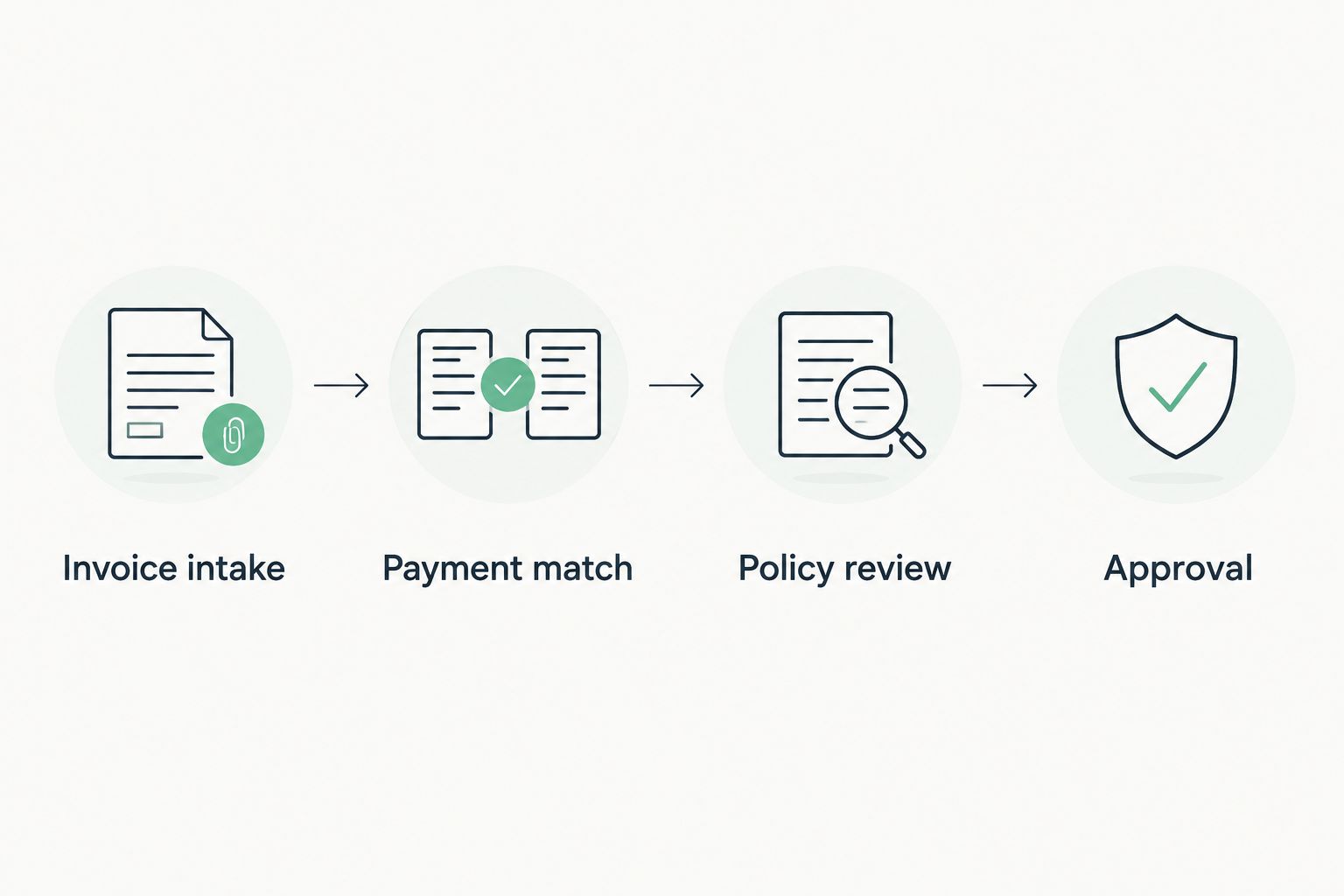
Expected result: Each imported document has a defined accounting destination. A corporate card receipt supports its existing charge, and an unpaid company invoice does not become an employee reimbursement.
Review and approval controls
Test the complete workflow
Run a small acceptance test before using the connection for routine travel. For your 2026 rollout, test 3 invoices: an ordinary completed journey, a document that has already been imported, and a corrected invoice handled under your finance policy.
- Process the ordinary invoice from intake through coding. Verify that the original attachment, traveler, business purpose, payment treatment, and approval owner remain visible throughout the process.
- Import the duplicate test document. Confirm that your process identifies it for review or prevents a second financial record; if the software provides no duplicate control, assign that check to the reviewer.
- Process the corrected invoice. Preserve the document trail and ensure that the earlier version is not submitted alongside its replacement as a separate expense.
- Establish 2 review gates: document verification and accounting approval. The same person can perform both only when your company’s authorization policy permits it.
Record exceptions in the system your team uses for expense administration. State the issue, the owner, and the resolution so the next reviewer does not have to reconstruct the decision from an email chain.
Expected result: A routine invoice reaches the correct approver, while duplicate and corrected documents receive deliberate handling. The workflow is ready only when those exceptions work as intended.
When an invoice is corrected after submission
A revised invoice needs a document-control workflow, not a fresh import treated as a new journey. Use this variant when a supplier issues a correction, replacement document, or credit related to an existing expense.
- Locate the original expense using its invoice reference, traveler, journey date, and payment evidence.
- Attach the revised document and identify which version supersedes the earlier one. Keep the audit trail according to your company’s retention policy.
- Compare the revision with the submitted record. Route accounting changes, credits, or payment differences to finance rather than silently replacing an approved total.
- Reopen or adjust the record only through your platform’s supported process. If the accounting period is closed, follow your finance team’s correction procedure.
Best for post-submission corrections: Amend the existing record through an approved process. This preserves context, but it requires finance involvement when a payment or closed reporting period is affected.
Troubleshooting
The invoice never reaches the expense workspace
Check the destination, account ownership, attachment format, and any sender restrictions in your platform’s documentation. If forwarding is involved, inspect the approved mailbox rule and test the same document through a supported manual upload.
The same ride appears twice
Compare invoice references, payment records, and attachments before deleting anything. Keep the correct accounting record, remove or mark the duplicate through the approved process, and review whether both automatic intake and manual upload created separate drafts.
The invoice will not match the card charge
Check currency, payment status, posting date, and whether the document covers multiple journeys. Do not force a match based only on a familiar supplier name; send unresolved differences to finance with the original documents attached.
The expense belongs to the assistant instead of the traveler
Review delegate permissions and ownership rules. Assign the journey to the correct traveler through the supported process, keeping the booking assistant’s role separate from the employee receiving reimbursement or holding the card.
The invoice imports but cannot be approved
Check required coding, business purpose, attachment access, and the assigned approver. Correct the missing information rather than weakening approval requirements to make the test pass.
Customize your workflow
Extend the connection upstream once invoice intake and matching work. Capture the booking owner, traveler, business purpose, and intended cost center when arranging transportation, then carry those details into expense review without assuming they will appear on the supplier’s invoice.
For Blacklimoboston corporate car service journeys, keep transportation arrangements and your internal accounting instructions distinct. The travel service handles the journey; your organization controls employee reimbursement, cost allocation, and approval policy.
Use separate exception routing for group journeys and consolidated invoices. Allocate expenses according to documented company rules, and avoid duplicating the full invoice across every passenger’s report.
FAQ
How do I connect Boston car service invoices to expense software?
Use your expense platform’s supported receipt upload, email intake, or documented connector, then match each invoice to the correct payment record. Verify traveler ownership and accounting coding before submitting it.
Does Blacklimoboston have a direct expense software integration?
No direct expense software integration is established by the service information provided here. Confirm invoice delivery and any documented compatibility before configuring your connection.
Can I use a booking confirmation as my final receipt?
A booking confirmation is not the same document as a final invoice. Follow your expense policy and obtain the final supporting document required for approval.
Should a corporate card ride become an employee reimbursement?
A corporate card ride should not become an employee reimbursement for the same charge. Attach the invoice to the existing corporate card record and apply your company’s accounting treatment.
What should I do when a car service invoice changes?
Attach the corrected invoice to the existing record and follow your finance team’s adjustment process. Preserve the document history and prevent both versions from creating separate expenses.
Can an assistant submit expenses for an executive?
An assistant can submit expenses only when company policy and the expense platform’s permissions authorize that role. Keep the traveler, payer, and submitting delegate clearly identified.
How do I prevent duplicate transportation expenses?
Check existing records before creating a new expense, using invoice references, payment evidence, and attachments together. Test how automatic intake interacts with manual uploads before enabling routine processing.
One last thing
The invoice recipient is not necessarily the traveler, payer, or reimbursement recipient. Make those roles explicit in your 2026 workflow, especially when an assistant books a journey for someone else; correct document delivery alone does not prove correct expense ownership.